
Expense Controls: Spending Limits, Approvals and Tagging
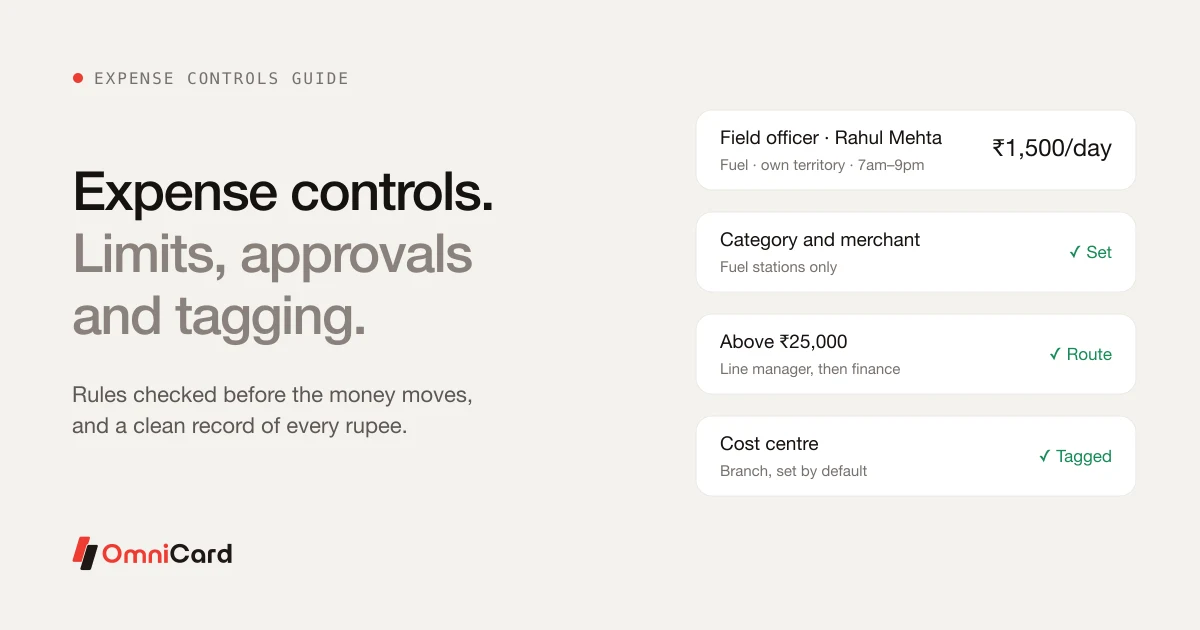
Expense controls decide what staff can spend, where, when, who signs off, and how each payment is recorded. Done well, they let people buy what the job needs without waiting, and give finance a clean record without a month-end chase. Done badly, they either block honest work or let spend drift until someone finds it in a spreadsheet.
This guide covers the five parts of a working control set:
- Spending limits by role, category and merchant
- Location and time rules (geo-fencing)
- Approval workflows that don't become a queue
- Cost-centre and project tagging, so every rupee has a purpose
- Vendor payments by staff and group companies
It ends with a worked example you can copy, a rollout checklist and answers to common questions.
Why "check later" stops working
Most companies start with controls applied after the money has gone: staff pay, submit a claim, a manager approves, finance checks the bill. That works when spending is small and happens in one office. It breaks when spend is spread across branches, stores and field teams:
- Out-of-policy spend is found weeks later, when the money can't be recovered without an awkward conversation.
- Approvers rubber-stamp long queues of claims, because they can't check each one.
- Finance types the same information again to code and post each payment.
The alternative is to apply the rules before the payment goes through. If a payment is outside the rules, it is declined at the point of purchase, and the person gets a clear reason. Everything that goes through is already within policy, which means most of it needs no human approval at all.
Spending limits by role, category and merchant
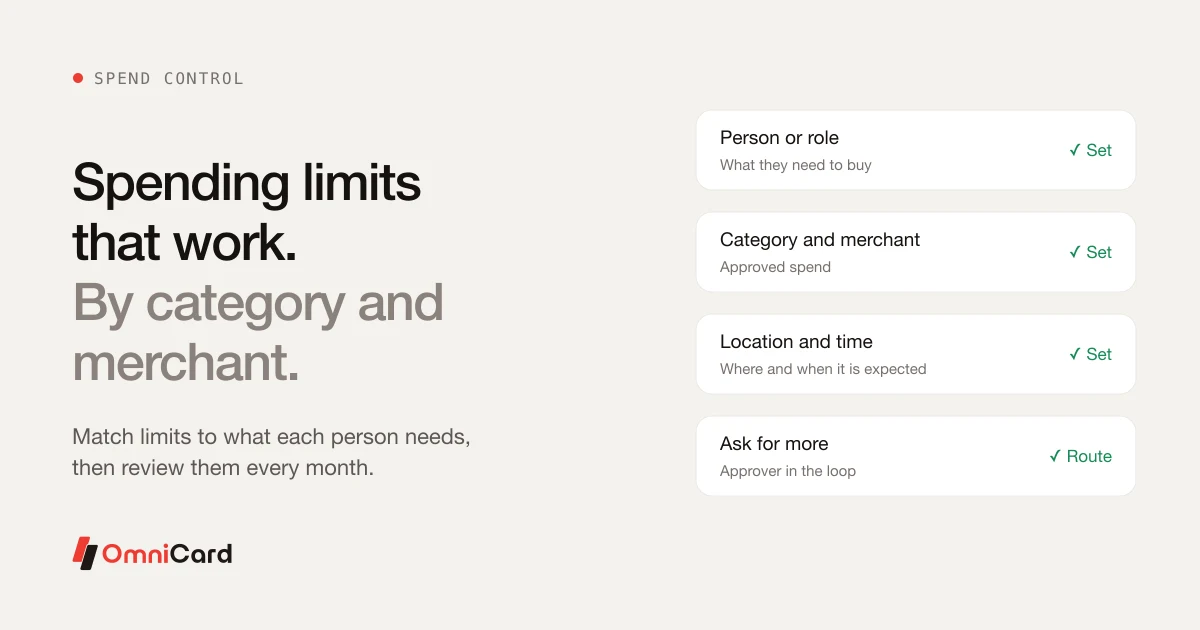
A single limit for everyone is too tight for some people and too loose for others. Limits work when they match what a person actually needs to buy. There are five levers:
| Lever | What it controls | Example |
|---|---|---|
| Person or role | How much this person can spend | A field sales rep: ₹2,000 a day |
| Category (MCC) | The type of spend | Fuel, local travel, meals, supplies, repairs |
| Merchant | Which vendors or shop types | Fuel stations and approved stationers only |
| Location | Where spend is expected | The rep's own sales territory |
| Time | When spend is expected | Working days, 7 am to 9 pm |
How to choose starting limits
- Look at three months of real spend by role. Your past claims and petty cash book are the best guide to what people actually need.
- Set each limit just above normal use. A limit far above normal controls nothing; one at the average blocks half of honest purchases.
- Add a route to ask for more. A one-off increase with a named approver beats people working around the rules.
- Review after a month. Look at what was declined and why, then adjust.
What to avoid
- Limits so low that staff fall back to paying personally and claiming later, which defeats the point.
- Categories left open that nobody reviews. If a category is allowed, someone should look at it monthly.
- Splitting rules, where one ₹6,000 purchase becomes three ₹2,000 payments. Daily and monthly limits, not just per-payment limits, close this gap.
Location and time rules (geo-fencing)
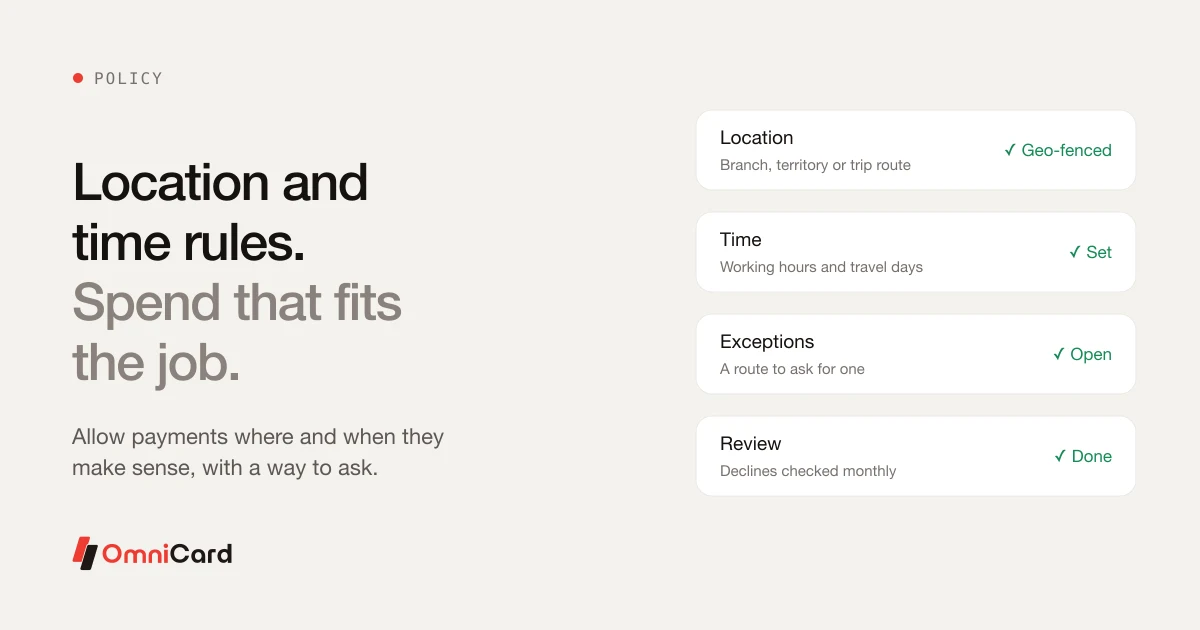
Some spend is wrong not because of the amount but because of where or when it happens: fuel in a city the employee doesn't work in, or a purchase at midnight on a public holiday.
- Location rules (geo-fencing) allow a payment only in places that make sense for the role: the person's branch, their sales territory, or the route of an approved trip.
- Time rules allow a payment only in set hours or on set days: working days for office supplies, travel days for hotel stays.
To set them fairly, start from where and when people actually spend, tell staff the rules so a declined payment isn't a surprise, and give a quick way to ask for an exception. After the first month, look at declined payments. Many declines on honest purchases mean a rule is too tight; none at all may mean it is too loose to matter.
Approval workflows that don't become a queue
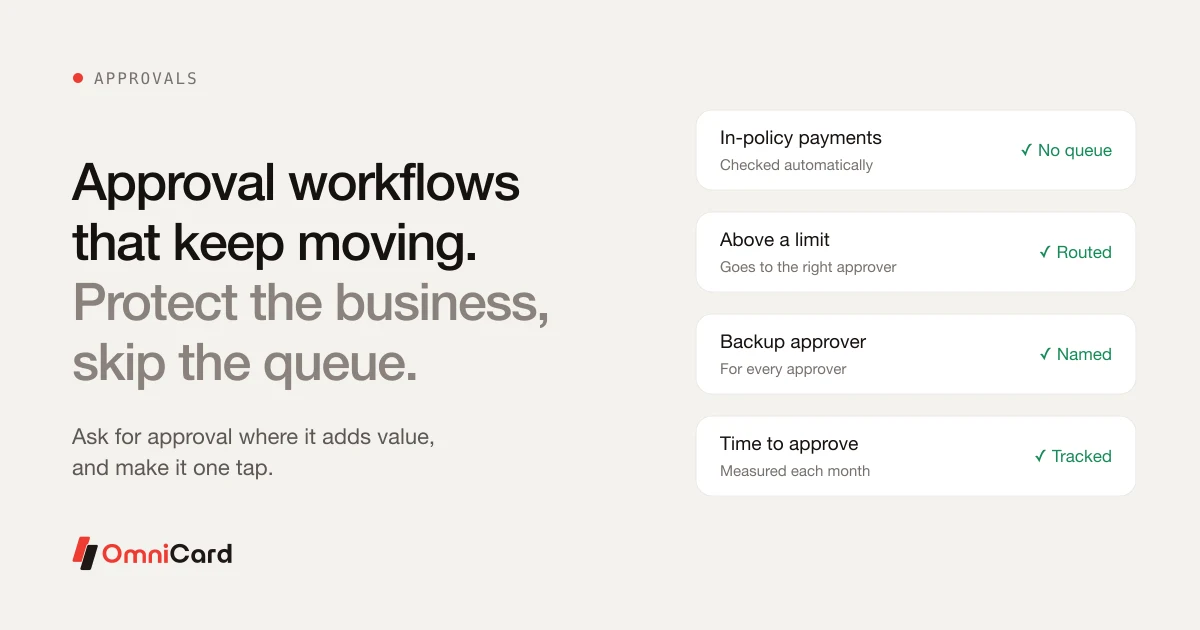
Approvals protect the business, but every approval step adds waiting time. The aim is to ask for a human decision only where it adds value, and to make that decision a one-minute task.
Decide what needs approval at all
If limits are checked before payment, small in-policy payments need no approval: the rules have already done the check. Keep human approval for:
- Payments above a higher limit
- Spend outside a person's usual categories
- One-off requests to raise a limit
- Reimbursement claims, where the employee paid personally
Who approves what
| Spend | First approver | Second approver |
|---|---|---|
| Team spend within budget | Line manager | None |
| Project spend | Budget or project owner | None |
| Above the higher limit (say ₹25,000) | Line manager | Finance |
| Any approver absent | Named backup | As above |
Every approver needs a named backup. Most approval delays come from an approver who is travelling or on leave, not from the decision itself.
Keep it quick
Show the approver everything on one screen: amount, purpose, bill and the policy it was checked against. One tap to approve or reject, with a reason when rejecting. Then measure the average time to approve each month. If it creeps up, simplify the rules or add backups. Our guide to a spend approval process covers approval matrices in more detail.
Cost-centre and project tagging
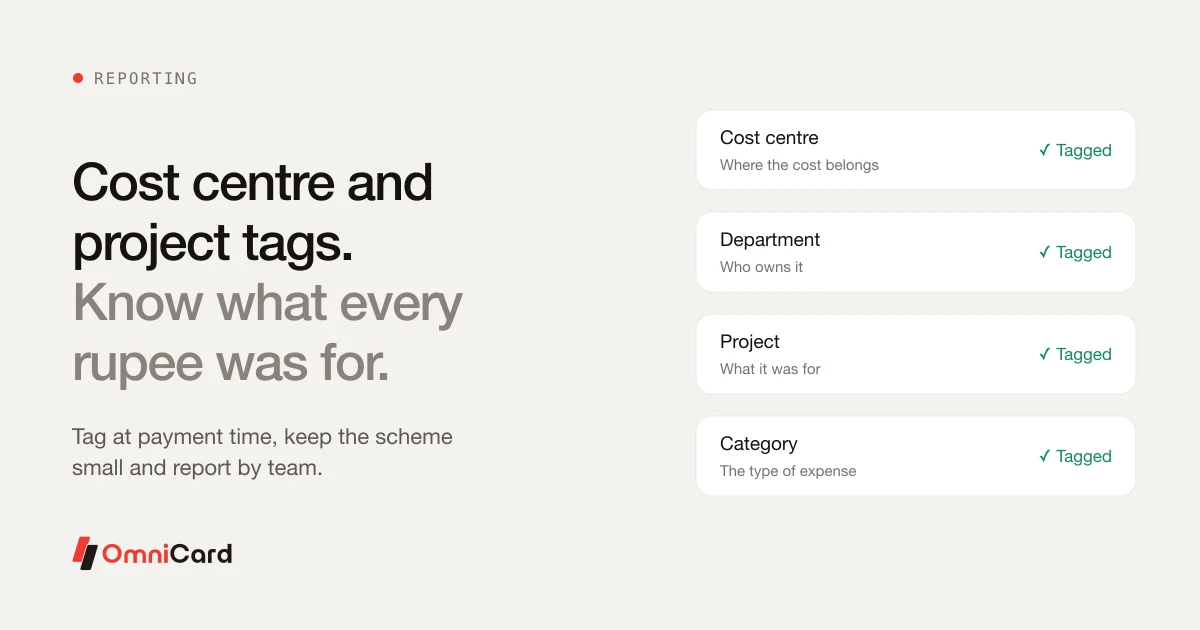
Most finance teams can tell you the total spent. Fewer can say what each project cost, or which department is over budget, without a week of spreadsheet work. The usual cause is tagging done late or not at all.
Tag at the time of spend
A tag added when the payment is made is more accurate than one added from memory a month later. Either ask for it at the moment of payment, or set it automatically from the person's team, so most payments need no choice at all.
A starting scheme
| Tag | Answers | Set by |
|---|---|---|
| Cost centre | Where does the cost belong? | Default from the person's team |
| Department | Who owns it? | Default from the person's team |
| Project | What was it for? | Chosen at payment, where relevant |
| Category | What type of expense? | Read from the merchant and the bill |
Keep the list short. Too many tags make people pick at random. Start with tags that map to your accounts and ledgers, and add one only when a report needs it. Each month, check the share of spend with no tag or only a default tag. If it's high, the scheme is too complicated.
Letting staff pay vendors within policy
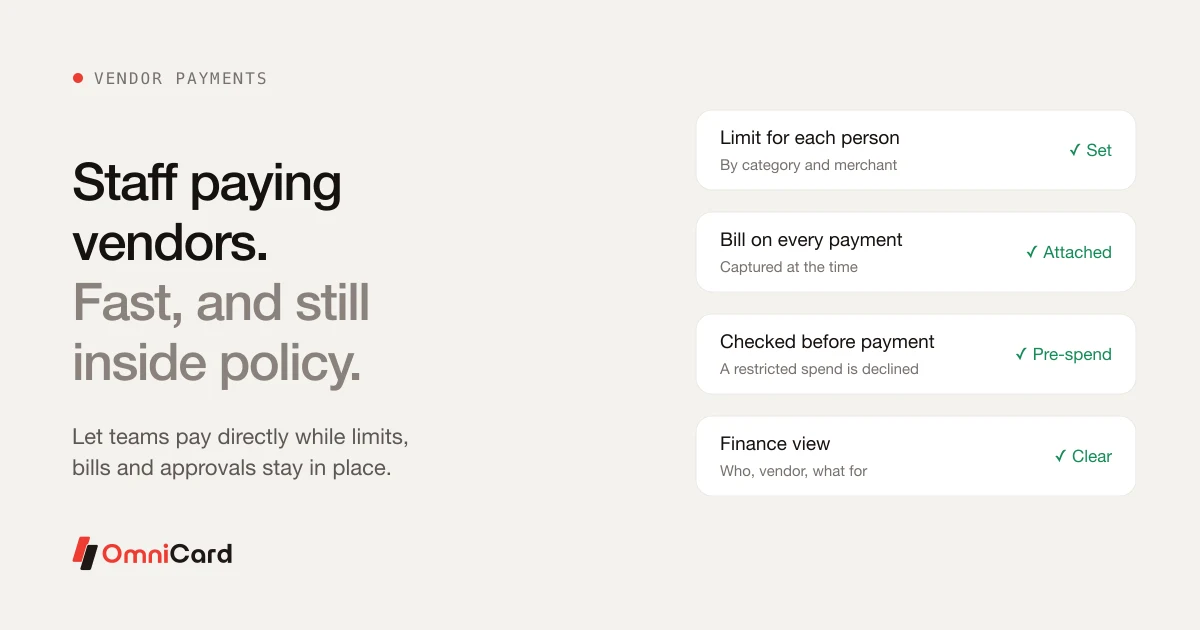
In many businesses every vendor payment goes through finance, however small. That is safe but slow: a branch waits for the plumber to be paid, and finance handles hundreds of small payments a month.
Letting staff pay vendors directly is faster, as long as the same rules apply at the time of payment. Before you allow it, set:
- A limit for each person and category
- Approved vendor types or merchants
- A rule that every payment carries a bill
- Who is told when a limit is reached
Afterwards, finance should see for each payment: who paid, which vendor, what for, the bill, and the policy it was checked against.
One policy across group companies
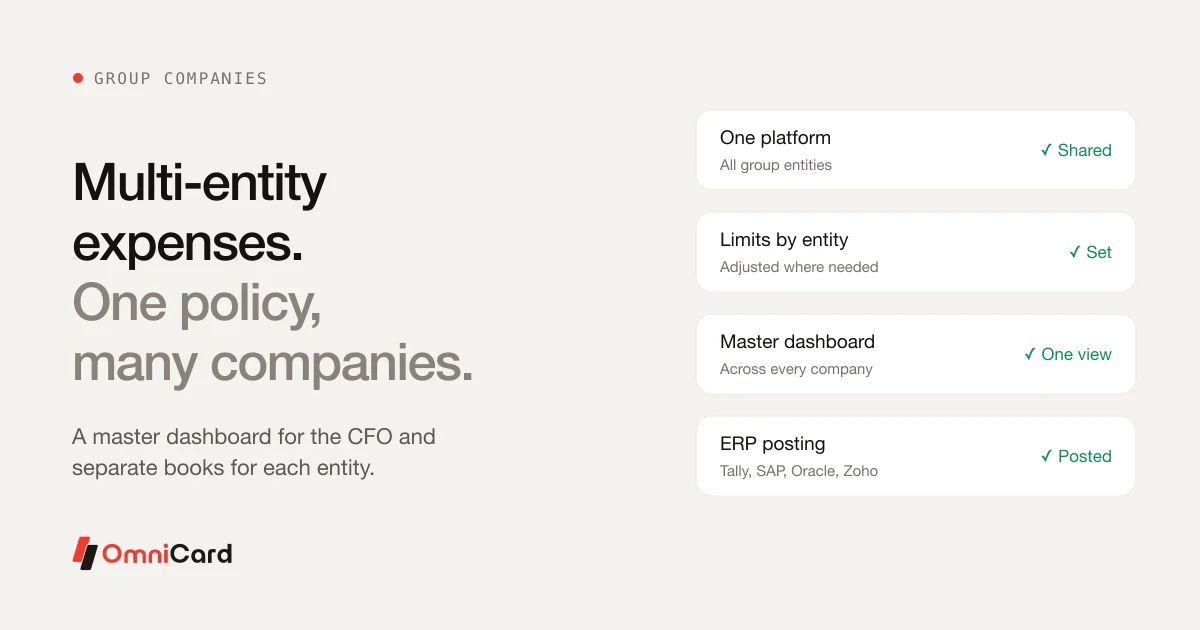
Groups with several companies often run expenses entity by entity: separate cards, separate sheets, separate approvers. The same expense is allowed in one company and refused in another, reports arrive in different formats, and the CFO adds everything up by hand to see the group.
What helps:
- One policy that can be adjusted per entity
- Separate ledgers and cost centres for each company, posting to each entity's books
- A master view across all entities
- Users who can work for more than one entity without a second login
Worked example: a 40-branch lender
Here is how the pieces fit for a lender with 40 branches, a field team and a head office. The figures are an example to adapt, not a recommendation.
| Role | Daily limit | Categories | Where and when | Approval |
|---|---|---|---|---|
| Branch manager | ₹5,000 | Supplies, repairs, utilities, vendor payments | Own branch, working days | None within limit; line manager above |
| Field officer | ₹1,500 | Fuel, local travel, meals | Own territory, 7 am to 9 pm | None within limit |
| Regional manager | ₹10,000 | All of the above, plus travel and stays | Own region, any day | Finance above ₹25,000 |
| Head office staff | ₹3,000 | Supplies, courier, local travel | Head office city | Line manager above limit |
Every payment is tagged with the branch as cost centre by default; field officers pick a project only for collection drives. After month one, the finance team reviews declines: if field officers are often declined for fuel just outside their territory, the territory is widened by a few kilometres.
A 30-day rollout plan
- Week 1: list everyone who spends, with their team, manager and backup approver. Pull three months of spend by role.
- Week 1: set starting limits, categories, location and time rules from that data.
- Week 2: agree the cost-centre and project list with your chart of accounts, and how entries post to your ERP.
- Week 2: go live with one region or a few branches. Tell staff what is allowed and how to ask for more.
- Weeks 3–4: review declines and approval times weekly. Loosen rules that block honest spend; tighten categories nobody uses.
- Day 30: roll out to everyone, and retire the old claim process for spend that now goes through the new rules.
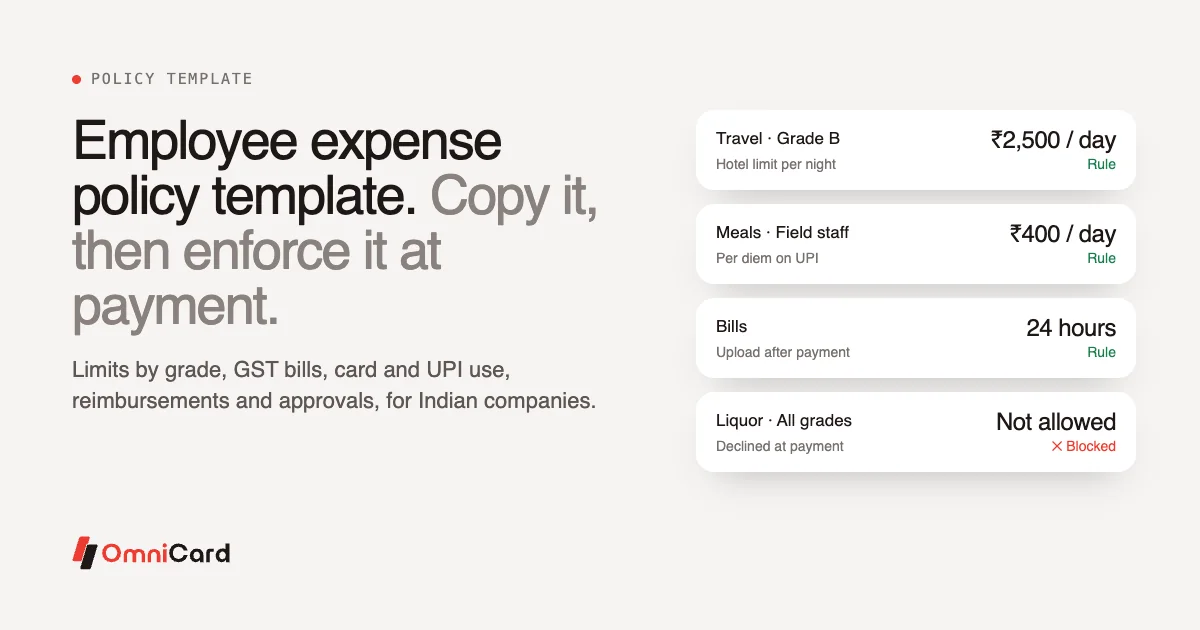
For a policy to start from, copy our employee expense policy template.
How OmniCard fits
OmniCard sets limits by employee, department, cost centre, category (MCC), merchant, location (geo-fencing) and time. Because OmniCard is the issuer, policy is checked at authorisation: a restricted payment is declined before the money moves, not found at month-end. Employees pay by company UPI or RuPay corporate card, and can pay vendors from the OmniCard employee app within the same limits.
Every payment is tagged by category, department, cost centre and project, and carries who paid, where, what for, the bill and the policy it was checked against. Group companies run on one platform with a master dashboard across all entities, and entries post to Tally, SAP, Oracle (NetSuite, Fusion), Zoho, Microsoft Dynamics or custom systems through APIs. For the claims that remain, Reimburse360 gives managers one-tap approvals.
OmniCard is run by Eroute Technologies Pvt. Ltd., an RBI-authorised Prepaid Payment Instrument (PPI) issuer and a direct NPCI issuer for RuPay cards, UPI (the @omni handle) and FASTag, with no sponsor bank in between.
Frequently asked questions
What are expense controls?
Expense controls are the rules that decide what staff can spend company money on: limits by person and category, where and when spend is allowed, who approves what, and how each payment is recorded. The strongest controls are checked before the payment goes through, not when a claim is reviewed.
What is an MCC, and why does it matter for limits?
A merchant category code (MCC) is a code that card networks give each merchant to describe its business, such as fuel stations or restaurants. Limits by MCC let you allow fuel but not electronics on the same card without listing every shop.
Do in-policy payments still need approval?
Usually not. If a payment has already been checked against the person's limits, category, location and time, a manager approving it adds delay but little control. Keep approvals for payments above a higher limit, one-off exceptions and reimbursement claims.
How do we stop people splitting a payment to stay under a limit?
Use daily and monthly limits as well as per-payment limits, and review payments to the same merchant on the same day. A policy that says splitting is not allowed helps too.
Can different group companies have different rules?
Yes. A common setup is one group policy with adjustments per entity: different limits, approvers and cost centres, each posting to its own books, with one view for the group CFO.
Keep reading
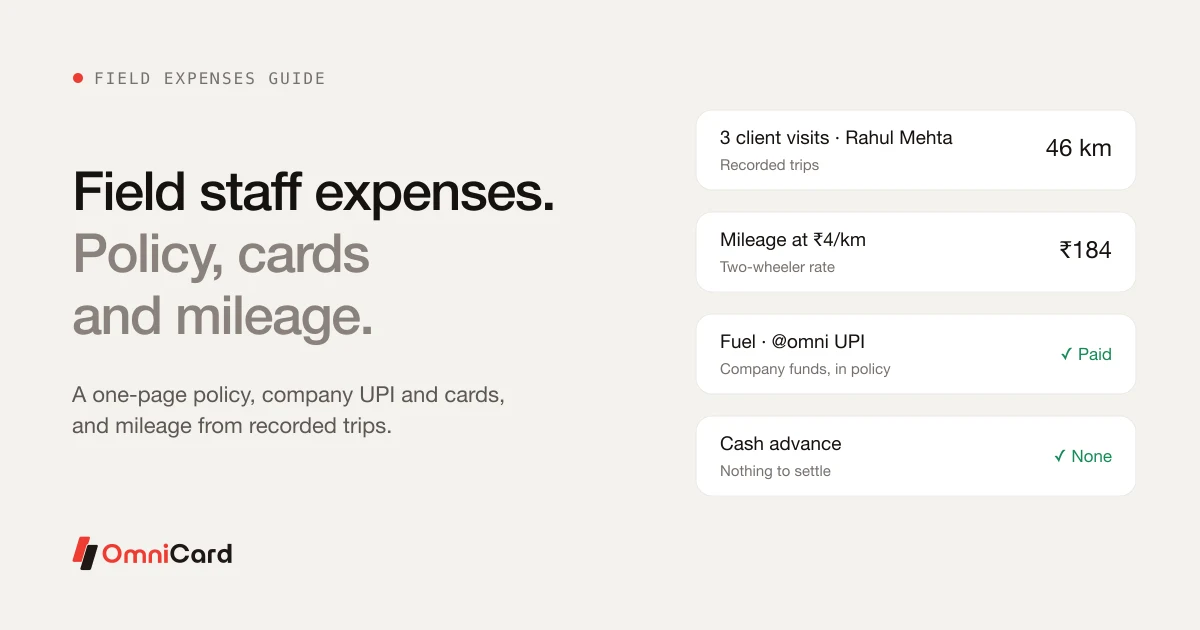
Field Staff Expense Management: Policy, Cards and Mileage
Employee Expense Policy Template for India
Expense Approval Workflow: Types, Matrix and DOA Limits

How to Automate Business Spending Management?

Expense Reporting: What Is It and Why It's Important?